0
Database Views - The Basics!
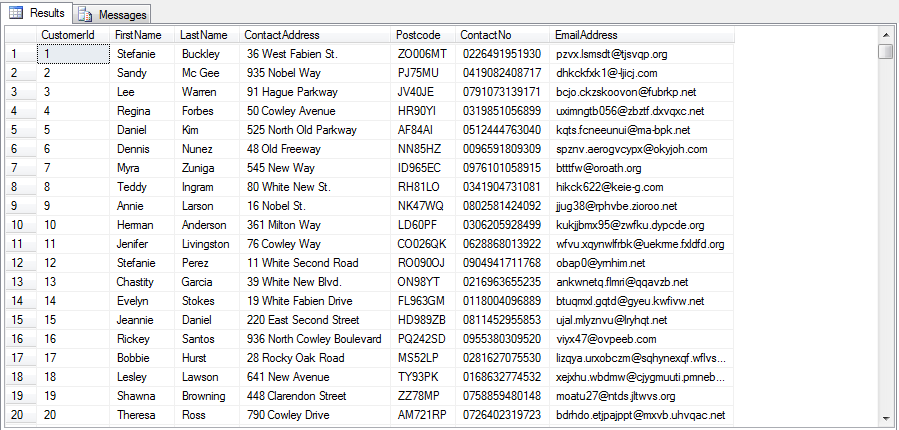
Hi everyone! We are going to start this week off by looking at database views and how useful they are when retrieving data. I have used them a lot during my working experience as they are incredibly useful for bringing back data from multiple related tables and joining them together.

The view in the example above is incredibly simple and is rather pointless for use as the straight table can be used instead. The snippet of code below is an example of a statement that I wrote for my portfolio of work which formatted the display of a Google API Map marker pop-up:

As you can tell, there's a lot of room for error when you type the code in - which is why I actually used the view generator as you can see exactly what you are modifying (for full size, click the image):

Something which you will need to consider when creating views is that despite the fact that they can be updated, there are quite a number of constraints and conditions that need to be met in order for this to take place:
As a result of these constraints, many try to avoid updating through a database view and use a trigger instead.
Views can also be partitioned or indexed in order to optimise query performance and make them faster, however you cannot create an index on a partitioned view and vice versa.
I am going to tackle triggers and indexes in later blog posts so please check back at a later date!
As an after note, if you want to remove a database view from a schema, you can simple use the DROP clause:


So what is a View?
A view is a SELECT statement that has been named and stored within the database. The purpose of this is so that it can be recalled and manipulated at a later point in future SELECT statements, just like any other table would.
The syntax for a sample view is as follows:
What Are The Pros and Cons of Views?
Pros
- Views can join multiple tables together and make what could be a complicated database schema simpler.
- When you don't fully trust the security of the person accessing the database, it shows exactly what you want it to show and restricts access to the underlying base tables.
- Views contain one or more SELECT statements so don't take much room to store as only the statement is stored and not the underlying data.
- Database object names can be modified using aliases in the view so that when they are output to the user, they are more user friendly.
Cons
- Views are difficult to update.
- Views have constraints so cannot be created in certain instances.
How Can a View Be Created?
The view in the example above is incredibly simple and is rather pointless for use as the straight table can be used instead. The snippet of code below is an example of a statement that I wrote for my portfolio of work which formatted the display of a Google API Map marker pop-up: As you can tell, there's a lot of room for error when you type the code in - which is why I actually used the view generator as you can see exactly what you are modifying (for full size, click the image):

Now I Have Created My View, What Can I Use It For?
As you can see, the SELECT statement can be quite complicated and perform various different tasks. However it is limited and cannot do the following:- Create a new table (permanent or temporary) by using a SELECT ... INTO statement.
- Reference a temporary table.
- Reference any type of variable.
- Have a total number of columns greater than 1024.
- Contain a COMPUTE or COMPUTE BY clause.
- Contain an OPTION clause.
- Contain an ORDER BY clause unless the TOP operator is also used.
Something which you will need to consider when creating views is that despite the fact that they can be updated, there are quite a number of constraints and conditions that need to be met in order for this to take place:
- The update must reference one table only.
- The column requiring the update in the view must reference the same column in a table directly.
- The update cannot be performed on a computed column from a UNION/UNION ALL, CROSS JOIN, EXCEPT or INTERSECT.
- The update cannot be performed if the column is impacted by a DISTINCT, GROUP BY or HAVING clause.
- The update cannot be performed on an aggregate column.
- The update cannot be performed if the TOP operator is used.
As a result of these constraints, many try to avoid updating through a database view and use a trigger instead.
Views can also be partitioned or indexed in order to optimise query performance and make them faster, however you cannot create an index on a partitioned view and vice versa.
I am going to tackle triggers and indexes in later blog posts so please check back at a later date!
As an after note, if you want to remove a database view from a schema, you can simple use the DROP clause: