Showing posts with label SQL Extensions. Show all posts
0

SET Statements

Posted by Danielle Smith on 11:44 in ,
Good morning everyone! Apologies for not positing on here for a while, I am quite busy at the moment so regretfully I won't be posting on here so much.

Today, I will be discussing SET statements and how they can be categorised and used within SQL Server. I have used several in the past but I haven't yet gone into detail about what each one specifically does, which is something I am going to rectify in this blog post. Before I begin, massive thanks to Microsoft and their technet website for providing me with information on the SET statements that I was unsure about:

http://technet.microsoft.com/en-us/library/ms190356.aspx

What are SET Statements? 

SET statements change the way that the current SQL Server session handles information. These are settings that are predefined in  Note that these are different to using the SET keyword to give a default value to a local variable.


Date and Time Statements. 

SET DATEFIRST
Uses an integer value to show the first day of the week. (Valid parameters: 1-7, Monday = 1, Tuesday - 2, Wednesday = 3, Thursday = 4, Friday = 5, Saturday = 6 and Sunday = 7.)

SET DATEFORMAT
Allows the user to determine the order of date parts. (Valid parameters: mdy, dmy, ymd, ydm, myd and dym.)

ISO Settings Statements.

SET ANSI_DEFAULTS
A collective group which, when switched on, will allow the user to have access to SET ANSI_DFLT_OFF, SET ANSI_DFLT_ON, SET ANSI_NULLS, SET ANSI_PADDING and SET ANSI_WARNINGS.

SET ANSI_DFLT_OFF
Overrides the default so when you try to add new columns after this Boolean has been set, new columns will not be nullable if nothing is declared.

SET ANSI_DFLT_ON
Allows you to restore the default setting whereby when new columns are created in the database, if not specified they will always be nullable.

SET ANSI_NULLS
Specifies the behaviour of = and <> operators when used with NULL values. Note that in future versions of SQL Server, this option will always be set to ON and any application that attempt to turn it OFF will produce an error message.

SET ANSI_PADDING
Controls the way shorter than defined column values are dealt with. Note that in future versions of SQL Server, this option will always be set to ON and any application that attempt to turn it OFF will produce an error message.

SET ANSI_WARNINGS
Specifies behaviour for certain error conditions using a Boolean variable.

Locking Statements.

SET DEADLOCK_PRORITY
Allows the user to specify a numeric value to give priority to processes during a deadlock situation. This influences which processes will continue.

SET LOCK_TIMEOUT 
Allows the user to specify how long a statement should wait for a lock to be released, in milliseconds.

Miscellaneous Statements.

SET CONCAT_NULL_YEILDS_NULL
Determines whether concatenation results are treated as either NULL or empty string values.

SET CURSOR_CLOSE_ON_COMMIT
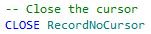
Determines whether to automatically close cursors once they have been declared. This is set to OFF by default, which means you will have to manually close the cursor by typing:


SET FIPS_FLAGGER
Determines whether to check for compliance with the FIPS 127-2 standard. For more information on this standard, please click on the following link:

http://www.itl.nist.gov/fipspubs/fip127-2.htm

SET IDENTITY_INSERT
When switched ON, this allows you to add values to an identity column in a database table.

SET LANGUAGE
Specifies the language for this session, which is reflected in the datetime formatting and the language of error messages relayed to the user.

SET OFFSETS
Only used in DB-Library applications, SET OFFSETS returns the relative position of keywords in T-SQL statements.

SET QUOTED_IDENTIFIER
Determines whether SQL Server should follow ISO rules for using double quotation marks or single quotation marks. With QUOTE_IDENTIFIER set to ON, identifiers must be quoted with double quotation marks and literals  must be quoted with single quotation marks. When QUOTED_IDENTIFIER is set to OFF, literals can have either single or double quotation marks however identifiers can't be quoted (and must follow T-SQL rules).

Query Execution Statements.

SET ARITHABORT
Stops a query when either an overflow or a divide-by-zero error (when SQL Server tries to divide a number by 0) occurs whilst the query is executing. By default, this setting is set to ON and should really remain on as turning it off can have negative impact on performance, whereby the query runs fast in SQL Server but much more slowly in the application itself. Plus, it can make it harder to debug the problem as you can receive different query plans.

SET ARITHIGNORE
Determines whether an error message is displayed on screen to the user when either an overflow or divide-by-zero query occurs. If this setting is set to OFF, SQL Server will still return a NULL value as the result of the query.

SET NOCOUNT
Usually when you run a query in SQL Server, it will tell you the number of rows that have been affected by the query that has just run in the messages window. When you set NOCOUNT to ON, it prevents SQL Server from putting this count at the end of the result set.

SET NOEXEC
When SET NOEXEC is set to ON, it means that the query will compile but it will not be executed.

SET NUMERIC_ROUNDABORT
Sets the error level generated when rounding an expression may cause unwanted loss of accuracy.

SET PARSEONLY
If SET PARSEONLY is set to ON, it means that the query won't be compiled or executed, however if any errors occurs due to the syntax used, these errors will be raised on screen to the user.

SET QUERY_GOVERNOR_COST_LIMIT
Determines what the maximum query cost is of a query to run on the database. If the query cost in the estimated execution plan is more than the limit set, then the execution of that query statement will be prohibited. This SET statement overrides the current limit for the current active connection.

SET ROWCOUNT
Tells SQL Server when to stop processing the query. If more rows are attempted to be returned, they will simply be left out of the returning result set and a message stating that will be displayed on screen to the user.

SET TEXTSIZE
Determines the size of textual database fields returned by a SELECT statement. The fields covered by TEXTSIZE are:

  • image
  • ntext
  • nvarchar(max)
  • text
  • varbinary(max)
  • varchar(max)

Statistics Statements.

SET FORCEPLAN
Processes the joins in the same order that tables appear in the FROM cause of a SELECT statement.

SET SHOWPLAN_ALL
Shows an estimated execution plan of the query, along with information on how the statements in the query are going to be executed.

SET SHOWPLAN_TEXT
Shows an estimated execution plan in a textual format.

SET SHOWPLAN_XML
Shows an estimated execution plan in a well formatted XML document.

SET STATISTICS IO
Shows information on disk activity whilst a query is being executed.

SET STATISTICS XML
Shows the actual execution plan of the running query in a well formatted XML document.

SET STATISTICS PROFILE
Shows the profile information of a query.

SET STATISTICS TIME 
Shows how long it takes to execute each query from start to finish, in milliseconds.

Transactions Statements. 

SET IMPLICIT_TRANSACTIONS
Determines whether the connection is in implicit transaction mode. If it is, then executing any of the following will begin a transaction:

  • ALTER TABLE 
  • BEGIN TRANSACTION 
  • CREATE 
  • DELETE 
  • FETCH
  • GRANT
  • INSERT
  • OPEN
  • REVOKE
  • SELECT
  • TRUNCATE TABLE
  • UPDATE

SET REMOTE_PROC_TRANSACTIONS
States that when a transaction is active, running a stored procedure causes a T-SQL distributed Transaction to execute (which is then managed by Microsoft Distributed Transaction Coordinator).

SET TRANSACTION ISOLATION LEVEL
Controls the locking behaviour of your queries as they are run.

SET XACT_ABORT
Determines whether SQL Server automatically rolls back any transactions that cause a run-time error. Can be used as an alternative to a TRY... CATCH block.

As A Final Word...

Thank you for reading today's blog post! If you have any questions/comments/feedback, please leave them in the comments section below and I will get back to you as soon as I can. Alternatively, please like my SQL Genius Facebook Page and leave a message on there.

0

SQL Server Database Mail (Intro)

Posted by Danielle Smith on 17:05 in , ,
Good afternoon everyone!

Today, I will be discussing Database Mail, which is one of the SQL Server Manageability Features. This is only going to be an introduction as the database administrator should be the person who handles the management of the database, however I will end up covering this is much more detail at a later date (as I will start to discuss the more administrative parts of database handling).

What is Database Mail? 

Database Mail allows the SQL Server instance to send email messages with attachments to specific users. This can be useful when you want weekly reports (which aren't formatted) to be sent to certain employees to give them an update on the information stored within a particular database table.

Prior to SQL Server 2005, SQLMail was the service provided, however this was replaced with Database Mail (with SQLMail included for backwards compatibility only). Database mail communicates using SMTP (Simple Mail Transfer Protocol) and doesn't require third party software such as Microsoft Outlook or Windows Live Mail, which makes it especially suitable for use on especially dedicated database servers.

Benefits? 

So how can this benefit me in my development? Well... the features of Database Mail allow you to integrate email messaging along with your applications. All you need to do initially is configure Database Mail so it's linked to the SMTP account. For more information on how to do this, please read the following link:

http://databasebestpractices.com/configure-database-mail-sql-server-2008-r2/

Sp_send_dbmail and Associated Arguments

Once this step has been completed, you will have access to sp_send_dbmail (the pre-defined stored procedure for sending email messages via Database Mail) and all of its associated arguments:

  • @profile_name
    • The name of the mail profile where the message is sent from. 
  • @recipients
    • The email addresses of the people who intend to receive the message in the "To" field. 
  • @copy_recipients
    • The email addresses of the people who intend to be in the "CC" field. 
  • @blind_copy_recipients
    • The email addresses of the people who intend to be in the "BCC" field. 
  • @subject
    • The text that forms the subject line of the email message. 
  • @body
    • The content of the message. 
  • @body_format
    • States whether the email will be sent in text or HTML format. 
  • @importance
    • Sets the importance level of the message to either "Low", "Normal" or "High". Normal is the default value.
  • @sensitivity
    • Sets the privacy level of the message to either "Normal", "Personal", "Private" or "Confidential". Normal is the default value.  
  • @file_attachments
    • The list of file names that you wish to attach to your email message, each one separated by a semi colon (;). 
  • @query
    • Defines a query for the system to execute. 
  • @execute_query_database
    • Executes the query stored in @query. However if no query is defined then this argument will be skipped. 
  • @attach_query_result_as_file
    • A bit value that determines whether the results of the query should be returned as an attachment (1) or within the body of the email (0). However if no query is defined then this argument will be skipped. 
  • @query_attachment_filename
    • The file name of the attached query result. However if no query is defined or if the @attach_query_result_as_file returns 0, then this argument will be skipped. 
  • @query_result_header
    • Determines whether the column heading names will be included in the returning result set. However if no query is defined then this argument will be skipped. 
  • @query_result_width
    • Sets the number of line characters when formatting a returning query result set. The default is 256 characters. However if no query is defined then this argument will be skipped. 
  • @query_result_separator
    • Specifies the query result column separator character. The default is set to a space. However if no query is defined then this argument will be skipped. 
  • @exclude_query_output
    • A bit value which shows if there was an error with the query. 0 means that the query error message is being displayed on screen in the messages tab. 1 means that the command completed successfully, even if the query in the stored procedure has failed. 
  • @append_query_error
    • A bit value which indicates whether a message has been sent or not when a query error occurs. 0 means that the email message wasn't sent, and 1 means that the email was sent however the error message that did occur was attached to the email. 
  • @query_no_truncate
    • A bit value which can be set to determine whether a large column in a result set should be truncated (shortened). The default is 0, where the columns truncate to 256 characters. However it is possible to modify truncation options to increase or decrease that length, or set the @query_no_truncate to 1 which turns of truncation completely. 
  • @mailitem_id [OUTPUT]
    • Outputs the mailitem_id of the message. 


Modifying Configuration Settings of Database Mail

The following stored procedures can be used to modify the configuration settings of Database Mail:

  • sysmail_configure_sp
    • Configures Database Mail parameters. 
  • sysmail_help_configure_sp
    • Displays the current settings for Database Mail.
  • sysmail_help_queue_sp
    • Displays information on status and mail queues. 
  • sysmail_delete_mailitems_sp
    • Permanently deletes Database Mail tables from the system. 
  • sysmail_delete_log_sp
    • Permanently deletes Database Mail logs from the system.
  • sysmail_start_sp
    • Starts Database Mail.
  • sysmail_stop_sp
    • Stops Database Mail. 

Conclusion

And that is my introduction to SQL Server Database Mail. In the future, I will be posting more about managerial features in SQL, so please stay tuned for those other the coming weeks.

As A Final Word...

Thank you for reading today's blog post! If you have any questions/comments/feedback, please leave them in the comments section below and I will get back to you as soon as I can. Alternatively, please like my SQL Genius Facebook Page and leave a message on there.

0

Extensions - Service Broker (Intro)

Posted by Danielle Smith on 12:30 in ,
Good afternoon everyone!

Apologies for not writing on here for a couple of days - on Monday I was in the test centre sitting my MCTS 70-433 exam and I passed! The past 2 days I have been very busy in the office sorting things out so I wasn't in the position to blog.

However... clean slate today and I am going to briefly cover another one of the SQL Server Extensions, called the Service Broker. As a Junior Developer, I've never had to use this myself however it is still very important to understand what its purpose is and how it can be used within your solution.

The purpose of the Service Broker (which was initially released in 2005 version of SQL Server but then expanded upon during future releases) is to send and process messages. The Service Broker mainly deals with:

Queues

Messages are pushed into a queue between the sender of the message and the recipient of the message, whilst relying on the Service Broker to ensure that the message reaches the intended recipient.

Dialogs

Dialogs are basically "conversations" where 2 participants (the sender and the recipient) are sending messages between each other. The dialog is the saved conversation between the two.

Conversation Groups

A conversation group is a collation of similar dialogs between multiple services in SQL Server. An example of this would be a Customer Relationship Management (CRM) having a GetCustomerInformation service, which would need to collate information from a customer data service and maybe an invoice service to see what items each customer has purchased.

Uses of the Service Broker


The Service Broker can be useful in any application which involves multi-threading (where multiple processes share the same resources and need to access the same information at the same time, but are able to execute independently from each other). Here is a list of some of the more typical uses:

  • Triggers.
  • Query processing.
  • Data collection. 
  • Server-side processing. 
  • Data consolidation.
  • Batch processing (on a large scale).

Benefits of using the Service Broker

There are many benefits that come with using the Service Broker:

Improved Performance. 

All data, messages and logic behind the application are stored within the same database, which means that less work will have to be carried out in order to retrieve them from an external source. Also, this means that the messaging system and the database will never be out of sync with each other, as one relies on the other to operate, unlike in older systems where the Service Broker was run separately and wasn't integrated within the SQL Server environment.

Easy to maintain and administrate.

Messages can be ordered and coordinated, which will make it easier for the database administrator to maintain. Prior to the release of the Service Broker in 2005, it was difficult to keep on top of the number of messages coming into the system and when a single application produces thousands of messages which could arrive in the wrong order, it's easy to see why this proves such a challenge for database administrators.

You would naturally assume that messages would arrive in the exact order that they have been sent however this isn't usually the case. A good example of seeing this in action is by describing someone viewing a video over the Internet. The video content is sent via packages (the progress of the capture and ordering of these packages is what the secondary bar is when looking at a video. Many thanks to YouTube for their buffer bar!):


When the playback of the video is faster than the speed which the packets are being received and reordered, this is referred to as buffering. Databases need to co-ordinate and order messages too - and the Service Broker with SQL 2005 onwards makes this process much easier to manage.

Flexibility between linked applications.

The use of queuing means that an application can send a message to the queue whilst still continuing with its own processing. The Service Broker is then relied upon to ensure that the message reaches its destination, the application itself doesn't deal with the actual sending process itself.

When multiple programs need to read from the same message queue, this used to cause problems in the past too. However the Service Broker fixes this issue by placing associated messages into conversation groups and then locking these groups when one particular instance is processing messages. This means that other applications can work on other conversation groups at the same time without locking complications.

Automatic activation makes applications scalable. 

Activation means that the application will scale itself accordingly depending on the number of messages that are in each queue, therefore assigning just the right number of resources to each message queue. The Service Broker will be able to automatically determine the scalability, however this isn't a default setting and you will manually need to turn this option on in order to take advantage of what it has to offer.

Final Word...

As a conclusion, the Service Broker is a neat add-on for SQL Server. Please note that this really is only a brief introduction as to what the Service Broker is and in the future, I will go more in depth with code examples on how to set up the Service Broker on your database.

What Next...

Well I have worked through the majority of the MCTS exam book now and I have to admit that writing down what I have been learning and practising has really helped me for my exam. Therefore, to conclude this week I will be writing about my experience in studying for my Microsoft exam, along with advise and tips on how to prepare.

As A Final Word...

Thank you for reading today's blog post! If you have any questions/comments/feedback, please leave them in the comments section below and I will get back to you as soon as I can. Alternatively, please like my SQL Genius Facebook Page and leave a message on there.

2

Extensions - Full-Text Search

Posted by Danielle Smith on 16:17 in ,
Good afternoon everyone and Happy Friday!

Today's blog post will cover the Full-Text Search - which is one of the Extended Features of SQL Server 2008. Although it was possible to use a kind of Full-Text Search prior to the 2008 release, this version included a fully integrated solution so there was no longer a need to run an external search service.

What is a Full-Text Search?

A Full-Text Search allows you to search for specific keywords within database records which cannot be traditionally found using the standard LIKE clause. It is possible to write queries which:

  • Return inflectional forms of a verb that you input. 
  • Return synonyms for a particular word. 
  • Returns results from data stored within a PDF file (stored within a varbinary(MAX) database field).

Full-Text Search Terminology

Below, I have listed some of the common terminology that you may find associated to the Full-Text Search (taken and reworded from Microsoft SQL Server 2008 - Database Developer Training Kit: MCTS Exam 70-433 p 335-336, ISBN: 978-0-7356-2639-3):

Term 

The Term is the string input for the full-text query; the word/phrase that you are searching for.

Full-Text Catalogue 

The Full-Text Catalogue represents a group of Full-Text Indexes.

Full-Text Index 

A Full-Text Index is an index that has been optimised especially to search within text database fields. In order to run a full-text search against a column, you must have a full-text index on the column first. You may only have one full-text index per table or view and there must be a unique key on the specific table already.

Word Breaker

The Word Breaker is a function that finds the tokens that defines each individual word in a string.

Token

A token is a word or character string defined by the Word Breaker.

Stemmer

The stemmer conjugates (or converts) verbs based on the linguistic rules of the defined language.

Thesaurus

Synonyms for a particular language can be stored within an XML document called the thesaurus. You can then create full-text searches for those synonyms within that particular language.

Stopword 

A word that is ignored within a search. A perfect example would be to Google a sentence and click on search. It has a list of stopwords which provide no meaning to the result set brought back. These often include "a", "and" and "the".

Types of Full-Text Search

There are 4 main types of Full-Text Search:

CONTAINS

CONTAINS allows you to find both exact matches and also less precise matches to the query input and takes 2 arguments:

IncludedColumns - which can take any of the following:
  • Column_name - This is for when you want to search on a single column.
  • Column_list - This is for when you want to search on multiple columns.
  • (*) - The asterisk states that all full-text-enabled columns should be searched upon.
  • Language -  This is the set language option that is being used by SQL Server.

SearchCondition - which can take any of the following:
  • Simple Term - A word or phrase that you wish to search for.
  • Prefix Term - A word or characters that you wish to search for as a prefix to other words. This should be followed by an asterisk (which symbolises 0 or more characters after the specified prefix). For example "Fish*" will return both "Fish" and "Fishing". 
  • Generation Term - Can be either INFLECTIONAL or THESAURUS:
    • INFLECTIONAL uses the stemmer to find relevant verbs. 
    • THESAURUS uses a a thesaurus file to look for synonyms of the same search term. 
  • Proximity Term - States that the term on the left should be close to the term on the right. Can be either NEAR or ~ (tilde) however both work exactly the same way.
  • Weighted Term - Determines the weight of a weighed query. 
  • Logical Operators
    • AND - Both parts of the query should be met. 
    • OR - Either part of the query should be met. 
    • AND NOT - The first part of the query should be true and the second part must be false.

CONTAINSTABLE

CONTAINSTABLE works for the same purpose and has the same search conditions as CONTAINS, however it will also allow you to return a "relevance value" (RANK) and the full-text key (KEY) for each data row. In addition to the arguments listed about for CONTAINS, it also takes:

  • Table - Which tells SQL Server the name of the table which has the full-text search enabled. 
  • Top_n_by_rank - Indicates that only the top number of rows with the highest ranking should be returned.

FREETEXT

FREETEXT makes it possible to match the actual meaning of the search condition. The word breaker is used to split the string into comprehensible words. Stemming is performed and then the thesaurus file is used to look at synonyms with the same meaning as the search term entered.

It uses the following arguments:

  • Column - This can either be a single column, multiple columns or all columns (*). 
  • Free-text string - This stores the string that is to be searched. 
  • Language - This is the set language option that is being used by SQL Server.

FREETEXTTABLE

FREETEXTTABLE works for the same purpose and has the same search conditions as FREETEXT and CONTAINSTABLE and includes the following:

  • Table - Which tells SQL Server the name of the table which has the full-text search enabled. 
  • Top_n_by_rank - Indicates that only the top number of rows with the highest ranking should be returned.
  • Column - This can either be a single column, multiple columns or all columns (*). 
  • Free-text string - This stores the string that is to be searched. 
  • Language - This is the set language option that is being used by SQL Server.

Overall...

The Full-text Search is an incredibly useful tool, particular when searching for keywords within a PDF file which I have come across as a requirement from a client in the past. Personally, I wouldn't say it's too difficult to implement and it really makes it much easier to search for those pesky keywords. This can and will be expanded on at a later date to show working examples on how to set up a Full-Text Index and a Full-Text Search Query.

What Next...

On Monday, I will be discussing the SQL Server Service Broker, which was initially released in the 2005 version but has been expanded on since. Stay tuned!

As A Final Word...

Thank you for reading today's blog post! If you have any questions/comments/feedback, please leave them in the comments section below and I will get back to you as soon as I can. Alternatively, please like my SQL Genius Facebook Page and leave a message on there.

Have a great weekend everyone! :) 

0

Extensions - Spatial

Posted by Danielle Smith on 14:28 in ,
Good afternoon everyone!

Today's blog post is going to cover Spatial Data Types, a part of SQL Server which is often referred to as one of the Extended Features which was new to SQL Server 2008.

What is a Spatial Data Type?

Spatial Data Types are special in that they allow you to store geographical information such as latitudes and longitudes or co-ordinates, which can be used by Microsoft Visual Earth in order to provide a mapped representation of the data. This can be incredibly useful if you are plotting locations on a map, or if you are trying to work out distances between points.

SQL Server 2008 onwards already has geometry and geography data types predefined and are ready to use straight away:

Geography - Data type that uses latitude and longitude values.

Geometry - Data type that uses co-ordinates to represent graphical 2D and 3D data.

How to Instantiate the GEOGRAPHY Data Type

Firstly, I created a new table just for the purposes of this exercise. As you can see, it's very easy and straightforward to declare a database field as a GEOGRAPHY type.


Next, I want to INSERT data into my new table. For the purpose of this example, I am putting in a location with the corresponding latitude and longitude points (if you can't find your exact location points, try using Google to find them from your postcode). You must then parse them into the appropriate field, while indicting that this is a geography field.


After executing successfully, I now want to view the results when I perform a SELECT query with the location as a string. In order to do this, I simply pull the location to a string format and give it an alias. WKT is a standard acronym for Well-Known Text (with WKB being the binary equivalent). For the purposes of this, I want to display the location field in WKT:


And this is the result:


Now I'm satisfied with the textual input, I want to SELECT and view the Spatial Results of this query. In order to do this, you simple run a standard SELECT like in the example provided below:


Then click on the new tab that has appeared called "Spatial results":


Now you will see the following grid:


The pinpoint is so tiny you really will need to zoom in to see on this image. However if you hover over the point, it's details will appear in a tool tip window. Looks familiar? Well similar functionality is found using Google Maps API:


And that is how you successfully pinpoint your location data using the GEOGRAPHY data type. If you add more data, you will be able to SELECT all pinpoints found within the database. Then, by customising your SELECT statement with WHERE clauses, you can further drill down to find specific points that have been plotted within your database.

How to Instantiate the GEOMETRY Data Type

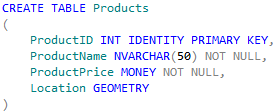
Similarly to the previous example, I have created a new table. As you can see, in order to declare a database field as a GEOMETRY type, it's exactly the same as GEOGRAPHY:


Next, I want to INSERT data into my new table. You can parse many different geometry classes into your system, as found here:

http://en.wikibooks.org/wiki/Geospatial_Data_in_SQL_Server

For the purpose of this example, I am going to use POLYGON. You should then parse in the parameters in order to build the shape:


Upon successful execution so my data has been inserted, I want to SELECT and view the Spatial Results of this query. In order to do this, you simple run a standard SELECT like in the example provided below:


Again, like using the GEOGRAPHY data type, you should now click on the "Spatial results" tab that has appeared:


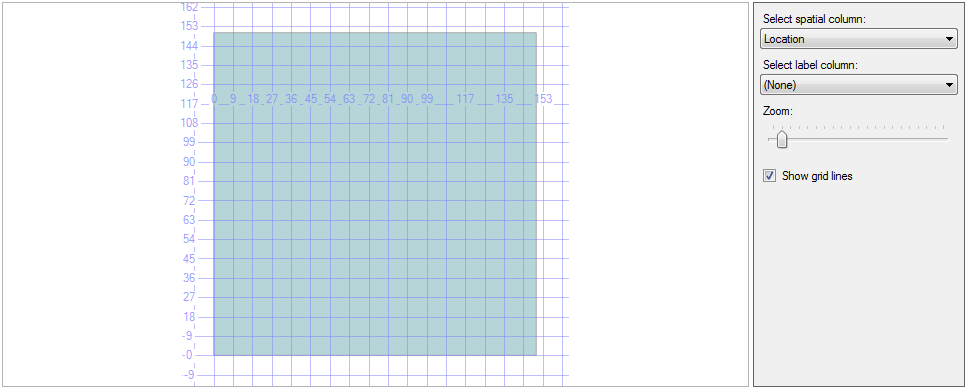
Now you can see your polygon represented on a 2D graph:


Obviously, this is an incredibly basic example. You can also create 3D shapes relative to the data within your database.

Overall...

Personally, I have never used these data types in my working environment, however they are incredibly useful to know about and I will consider using them when designing a database in the future.

What Next...

Next, I will be looking at another of the extended SQL features called the Full-Text Search. I will be explaining what it is, why it can be useful in your database solution and how to implement it. Stay tuned!

As A Final Word...

Thank you for reading today's blog post! If you have any questions/comments/feedback, please leave them in the comments section below and I will get back to you as soon as I can. Alternatively, please like my SQL Genius Facebook Page and leave a message on there.

Copyright © 2009 SQL Genius - Personal Development of a Junior All rights reserved. Theme by Laptop Geek. | Bloggerized by FalconHive.